Blog Page 2

0

In this post I will tell you how to use WhatsApp on Pc for Windows. As it is well known fact that WhatsApp is the most popular messenger for Mobile phones. Generally if you don’t have a Smart phone then you can’t enjoy WhatsApp . but in this post I will say you the hidden trick by which you will be able to use WhatsApp on your computer . it will be useful for both Windows and Mac.

You will require Android Emulator to run WhatsApp on PC. Bluestack is an Andriod Emulator to run WhatsApp or any other Android App on your PC.
Now follow these steps:

  1. At first download Bluestack .To download Bluestack click here
  2. Double click and install it on your system.
  3. If you get some error message during installation then you have to get .NET framework from Microsoft website.
  4. now open the application
  5. click on Search Icon and search for Whatsapp.
  6. Now choose anyone form of WhatsApp messenger.
  7. Click and download WhatsApp after selecting from any app store
  8. Now find the downloaded app in My Apps
  9. Just click on WhatsApp. Fill up the required details.
  10. Now you can start to use it.

In this way now you can to use WhatsApp on PC.

0

In this Post I’m here to tell you how to Protect your Smart Phone from Different Infections and Virus. Actually there are Millions of Viruses that hackers use to Inject your Smart Phones to Steal your Personal information like the mostly your Credit Cards Detail and other Personal information. So you have to Keep your Smart Phone safe from different infections and threats for this purpose always use Good Ranked Antivirus i will recommend you AVG & Avira I’m using them Personally they are the best, okay now Lets Get to the Topic.


  1. Your calls will behave strangely –
    sometimes during a call it suddenly stops. If it happens frequently then try calling other number and if possible try landline. It may be that problem is on the other side but many times it may be due to malware infection. This type of infection interfere with your calls when it uses your network. It can record your chat with your friends and it is a big threat for your privacy. So be alert.
  2. Wrong bill - if you use postpaid connection and getting wrong bills then it may be an alarming condition. Sometimes infection can do SMS activity and Data usage which is not known to you . so always keep an eye on how much data you use . if you know from someone that he has got a strange message from you which is not sent by you then it may be due to malwares . So be alert.
  3. Your phone is running slower than usual- if you find that your phone is running slowly . your apps starts very slowly and sometimes your phone hangs. Then it may be due to infections in your Android smartphone. So it’s time to check.


If you find any of the above situation then you should scan your Android smartphone for infections.


0

Fix “Please Wait” Screen Problem in Windows 8 (8.1) is very annoying when window 8 (8.1) automatically update and show “Please wait screen” for long time and just stuck at please wait screen and If you will force shut down (using button) and restart your computer but still the screen stuck at “please wait…”.

Read the complete steps of this article and fix “please wait” screen problem easily. Sometime this problem might resolve after a simple restart of computer but sometime it’s very annoying when “please wait screen” still showing on screen.

Follow below steps to Fix “Please Wait Screen” on window 8 (8.1)

  1. Open your computer in Safe mode and boot your OS and check the issue: – Safe mode is also known as troubleshooting mode which start computer with less drives and service. Follow below steps to boot your computer into safe mode.
  • Press ALT+CTRL+DEL If “please wait” is displaying on your computer screen.
  • Click the power button on bottom right.
  • Hold SIFT Key and Select Restart
  • Window Startup Setting will appear on your screen.

Note: If ALT+CTRL+DEL don’t work on your computer then forces restarts your computer by pressing switch button and hold SIFT Key and keep pressing F8 before window star up reach to the window startup setting screen.

  • Now select Troubleshooting
  • Go to Advanced option and click on startup setting
  • Click on Restart
  • In Startup Setting screen you can select the number corresponding to Enable Safe Mode
  • Now choose administrative account to make changes.
  • Open RUN box by pressing Windows Key + R key - RUN box will appear on screen.
  • Type MSCONFIG and press Enter button
  • Now System Configuration dialog box will appear on your screen & click on Service Tab
  • Check Hide all Microsoft services and select Disable all
  • Now click on Startup tab and click on Open Task Manager
  • Task Manager Startup tab box will appear and select all items and disable one by one.
  • Close task manager box.
  • Now in System Configuration dialog box click Ok button and restart your computer.

After following above method you need to pinpoint the service causing the problem from System Configuration:

  • Open System Configuration as above and go to service tab
  • Check Hide all Microsoft services
  • Select the some box from the list and leave the rest.
  • Click Apply & OK the restart your computer.

Now check everything is ok or not. If everything is ok then congratulation else you need to repeat the above steps to find out the problems in your computer.

Method 2: – Use SFC Scan to repair system files

SFC Scan helps to find out the corrupt files and repair the corrupted files automatically. This tools help to repair the corrupt files by using some commands. Follow bellow steps for SFC Scan

  • Press Window Key + X (short command) or go to Advance Options from Windows Startup Settings
  • Choose command prompt
  • In Command Prompt Type this command: SFC/scannow
  • Press Enter button
  • Now just wait to complete the process.

Method 3: – Restore System

Generally please wait screen arise because of recent changes in your system. To fix “please wait” error you need to restore the system.

  • Go to Advance Options & choose System Restore
  • Click Next then Restore system files and settings message
  • Now Select the Restore which one you want then click on Next
  • Click on Finish & confirm you want it.
  • Click Restart

Method 4: – Stop Pending Updates

Sometime lots of software & drivers updates at the time of booting process, if you have lots of software or drivers updates are pending then it will take lots of time in booting process and result your screen display “please wait” screen.

  • Open Command Prompt from Windows Startup Settings
  • In command prompt type: exe /image:C: /cleanup-image /revertpendingactions & Press Enter button.
  • Also use below command: Takedown /f C:Windowswinsxspending.xml and Takedown /f C:Windowswinsxspending.xml
  • After system reboot, it will recommend you to run window update again.

Method 5: – Problem in one user account

Sometime problem arise in one user account that time you need to follow below steps to fix “please wait” error screen. It can be fixed by creating new account from safe mode. Follow below steps

  • Open Safe mode as above
  • Open setting by click on setting option on Charms Settings panel
  • Click on Change PC settings
  • Click on Accounts then choose Other accounts
  • Now, Select Add an account
  • Type Username & Password for new profile & click Next
  • Now Select new account and click Edit
  • Set account type to Administrator and click OK
  • Now wait to load new account and log in new profile and check the error.

If “please wait” error screen is still showing on your screen then follow above method and restore the computer files.

Follow all the method and hope your problem will fix by follow the above methods, if you have any problem then you please comment.


0

Android is one of the best and most widely used mobile OSes on cell phones today. Founded by Andy Rubin, Rich Miner, Nick Sears and Chris White in Palo Alto, California; it has come a long way in development. They originally wanted to develop software for cameras, but after realizing that cameras do not have a very large market, they went on secretly developing “Android” – an OS that would rival Symbian and Windows Mobile. “We wanted smarter mobile devices that are more aware of its owner’s location and preferences,” Andy Rubin said, when he came up with the idea of Android.


  • *#*#778O#*#* = Factory Data Reset
  • *#*#I472365#*#* = Starts a Quick GPS Test
  • *#*#0673#*#* OR *#*#0289#*#* = Starts Audio Test
  • *#*#2664#*#* = Starts Touch Screen Test
  • #’#273283*255*663282*#*#* = Backup Media Files
  • *#*#0283#*#* = Starts Packet Loopback Test
  • *2767*3855# = Reinstalls The Phones Firmware & Format Your Phone
  • *#*#232339#*#* OR *#*#526#*#* = Starts Wireless LAN Test
  • *#*# 1575#*#* = Starts Different GPS Tests
  • *#*#4636#*#*‘ = Shows Complete Information About Your Phone
  • *#*#2663#*#* = Shows Touch Screen Version
  • *#*#232337#*# = Displays Bluetooth Device Address
  • *#*#4986*2650468#*#* = Shows PDA, Phone Hardware, RF& Call Date
  • *#*#44336#*#* = Displays Build Time
  • *#06# = Displays IMEI Number
  • *#*#8255#*#* = Google Talk Service Monitoring
  • *#*#I II I#*#* | *‘#*#2222#*#* = Shows FTA Software Version & FTA Hardware Version
  • *#*#3264#*#* = Shows ROMVersion
  • *#*#23233I#‘*#* = Starts Bluetooth Test
  • *#*# 1234#’#’ = Shows PDA & Phone Firmware Information
  • *#*#0*#*#*= Starts LCD Display Test
  • *#*#0842#*#* Starts Vibration & Backlight Test
  • *#*#0588#*#* = Shows Proximity Sensor Test
  • *#*#232338#*#* = Shows Wi-Fi Mac Address
  • *#*#7262626#*#*= Shows Field Test
  • *#*#34971539#*#* = Shows Camera Update
  • *#*#19732840#*#* = Enables Test Mode
  • *#06# – Shows IMEI number
  • *#0*# – Shows Service Menu (Galaxy S III + )
  • *#*#4636#*#* – Shows Phone Information,Usage Statistics &Battery Information
  • *#*#34971539#*#* – Shows Detailed Camera Information
  • *#*#273282*255*663282*#*#* – Immediate Backup of AllMedia Files
  • *#*#197328640#*#* – EnablesTest Mode For Service
  • *#*#232339#*#* – Wireless LAN Tests
  • *#*#0842#*#* – Backlight & Vibration Test
  • *#*#2664#*#* – Touch Screen Test
  • *#*#1111#*#* – FTA Software Version (if 1111 does not work try 1234)
  • *#12580*369# – Software &Hardware Information
  • *#9090# – Diagnostic Configuration
  • *#872564# – USB Logging Control
  • *#9900# – System Dump Mode
  • *#301279# – HSDPA/HSUPA Control Menu
  • *#7465625# – ViewsPhone Lock Status
  • *#*#7780#*#* – Resets The Data Partition To Factory State
  • *2767*3855# – FormatsDevice to Factory State (will delete everything on phone)
  • ##7764726 – Hidden Service Menu (forsome Motorola Droid series)
  • *#*#7594#*#* – EnablesDirect Powering Down of Device (once this code is entered)
  • *#*#273283*255*663282*#*#* –Quick Backup of All The Media Files On Your Android Device
  • *#*#232338#*#* – Shows Wi-Fi MAC Address
  • *#*#1472365#*#* – Performs a Quick GPS Test
  • *#*#1575#*#* – For a More Advanced GPS Test
  • *#*#0283#*#* – Performs a Packet Loopback Test
  • *#*#0*#*#* – Runs a LCD Display Test
  • *#*#0289#*#* – Runsan Audio Test
  • *#*#2663#*#* – ShowsDevice’s Touch Screen Version
  • *#*#0588#*#* – Performs a Proximity Sensor Test
  • *#*#3264#*#* – Shows RAM Version
  • *#*#232331#*#* – Runs Bluetooth Test
  • *#*#232337#*# – Shows device’s Bluetooth Address
  • *#*#7262626#*#* – Performs a Field Test
  • *#*#8255#*#* – Monitors Google Talk Service
  • *#*#4986*2650468#*#* – Shows Phone, Hardware, PDA, RF Call Date & Firmware Information
  • *#*#1234#*#* – Shows PDA & Phone Firmware Information
  • *#*#2222#*#* – Shows FTA Hardware Version
  • *#*#44336#*#* – Shows Build Time &Change List Number
  • *#*#8351#*#* – Enables Voice Dialing Log Mode
  • *#*#8350#*#* – Disables Voice Dialing Log Mode
  • ##778 (+call) – Shows EPST Menu
  • *#*#7594#*#* – EnablesDirect Powering Down of device once this code is entered
  • *#*#232338#*#* – Shows Wi-Fi MAC Address

Specific Codes for HTC devices:-

  • *#*#3424#*#* – Runs HTC Function Test Program
  • ##786# – Reverse Logistics Support
  • ##3282# – Shows EPST Menu
  • ##3424# – RunsDiagnostic Mode
  • *#*#8255#*#* – Launches Google Talk Service Monitor
  • ##33284# – PerformsField Test
  • ##8626337# – Runs VOCODER
  • *#*#4636#*#* – Shows HTC Info Menu

0

As you know Google.com is the most popular search engine in the world.

Here are some tips to helps you find eBooks with Google:

Find Apache’s (default) Index page

Try this query:
+(“index of”) +(“/ebooks”|”/book”) +(chm|pdf|zip|rar) +apache
Find a particular eBook file

Try this query:

allinurl: +(rar|chm|zip|pdf|tgz) TheTitle

0
A Vulnerability has been discovered in the wildly popular messaging app WhatsApp, which allows anyone to remotely crash WhatsApp just by sending a specially crafted message, two security researchers reported.
The worried impact of the vulnerability is that the user who received the specially crafted message will have to delete his/her whole conversation and start a fresh chat, because opening the message keeps on crashing WhatsApp unless the chat is deleted completely.


0

Contrary to what people think, there are several reliable free domain provider the world today, for those who can’t afford a paid domain name (.com, .net, .mobile etc.), you should go for the free domain option available.

  • FREENOM.COM Behind DOT.TK Company Freenom hosting more Free domains in market and also Free DNS.


  • DOT.TK This is unarguably the most popular free domain provider. DotTK offers free .tk domain names, as well as paid .tk domain names ($6.95/year). The free domain come with a twist though – a Free .TK Domain automatically expires when it does not receive the required minimum of 25 unique visitors during the previous 90 day period. DotTK supports frame redirects, and also allows you to use your own name servers to easily integrate into your .TK domain into your website. They also offers their own DNS service if you prefer yo use it. If you do not set your website to properly redirect or if the DNS is still updating, your .TK domain will display a parking page with advertisements.


  • CO.CC Behind DOT.TK is CO.CC. They support Windows Live Custom Domains, integration with Google Apps, as-well as Blogger custom domains. also they also offers their own free DNS service with full NS, MX, A and CNAME records.There are absolutely no ads for .CO.CC free domains unlike others.


  • CC.CZ CC.CZ is another good free domain provider. Though the CZ prefix does imply Czech Republic, but registration is in no way limited to other users, and their domains are accessible world-wide. Contrary to CO.CC, they allow free short 3-character domains. One good thing about them is, You can register their free domains for two years, so that relieves you of worrying about renewing it. Domain renewal is always free too.


  • CU.CC This is another full featured free domain provider

0
Hello, I’m Noor Qureshi My Passion is about Searching for Security Flaws in Database and Websites Scripts But Blogging is Just for Fun for sharing knowledge to others.

So lets get started, Today we are going to Get a Free domain name from any Free Domain Re-seller Company.

But in this Tutorial we’ll be using this Freenom.com


Now you need to Choose your Free Domain name Enter your Own I’ll be Registering. I have Entered my own domain which i would like to register free. and then click on Search icon it will search for a available domain name in company.

Freenom.com

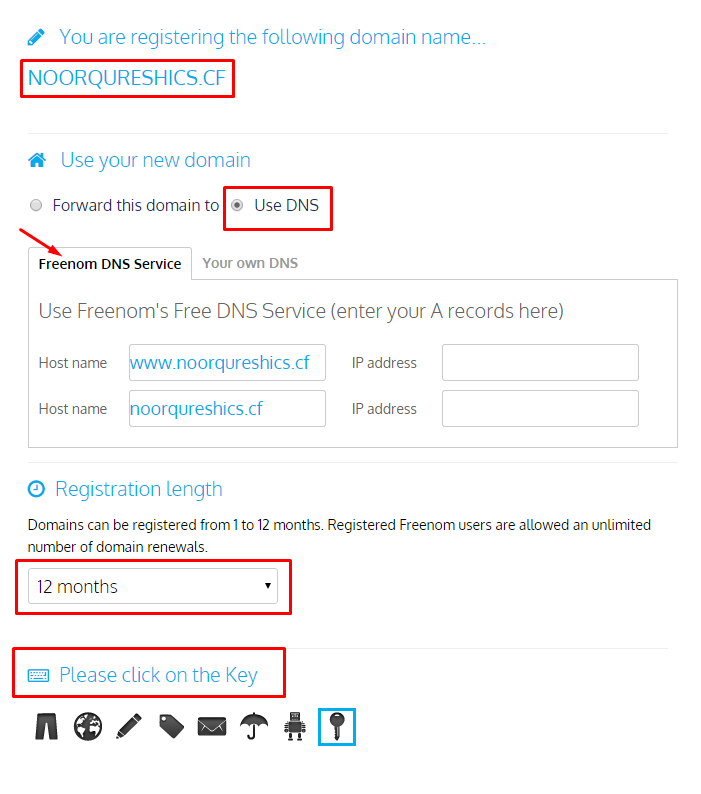
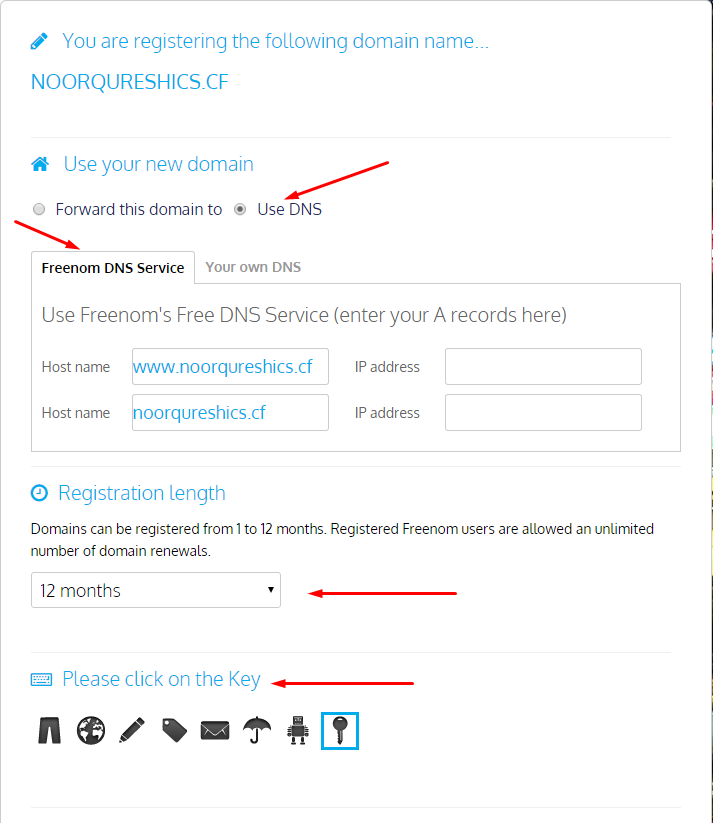
In the Registration Step Follow this:

  • Select ” Use DNS “
  • Select ” Use DNS & Your own DNS” *( ns1.noorqureshi.com / ns2.noorqureshi.com )
  • Select ” 12 Months Registration Time “
  • Select ” The Correct Answeser of Captcha “


Then click on Register a Free Domain Name.


On the Next page it will ask you to Enter your Email Input your Email there and Click on Next, It will ask you to Register your Account Input all the data which is Required by the Domain Provider and Click Register. After this you need to verified your account thought email verification. Enter your Confirmation code in next step you received thought email verification hit Next.

This login to your Account and Done! your Domain is Registered now in the Next Tutorial I’ll be showing you how to Connect this Freenom.com domains to blogger.com


0

Hello I’m back with an another Tutorial on Making a WordPress Free Blog. Actually there are normally three ways for installing a WordPress Blog.

What is WordPress?

WordPress is an Open Source that Webmaster use to Design there and Clients Websites. before WordPress was just a blog to share news and etc stuff. Now with the time it has many Great Updates Now there are millions of WordPress Designer and Developers working day and Night to Develop there own Custom Things. And Now it is called Blog and CMS. Everyone is now moving to WordPress it is Simple and Easy to use and Very Friendly Admin panel. I’ll Prefer to use WordPress.

1. Installing WordPress from the cPanel Installer.

2. Downloading WordPress Source and Manually Installing.

3. Installing WordPress from there official WP Hosting.

But Today I am talking about Installing WordPress from there official WordPress hosting server for free. it has benefits as well as we are bound too. For The Webmaster It didn’t have full access to the WordPress Source from there hosting cause there can a Security Problem for there server so we have limited access but it is okay. Now Let’s talk about our Tutorial.

All you have to do is Register to WordPress.com clicking on Creating a Website. then it will ask you to Import your Signup Details Enter all the Details that it as you to Input.


In the Next Setup click on Create Blog button.


Then it will says that domain is yours Contgz,, And Change your Theme and Change your Blog Theme. And vola your in your Dashboard. Do what ever you want have fun with the Free WordPress.

In the Next Tutorial I’ll be teaching you how to Install your WordPress blog in your own Hosting.